

 0
0
 0
0
Properly turning off your iphone is a basic maintenance procedure that helps fix software errors, free up RAM, and extend component lifespan. Depending on the design of each model, users can apply methods using physical buttons or directly intervene through the system software.

1. A compilation of power-off methods by device type.
To do this quickly, users need to accurately identify the iPhone model they are using to apply the appropriate key combination:
| Machine line | Normal power off | Force Restart |
|---|---|---|
| iPhones have Face ID (X to iPhone 17) | Hold down the Side Button + Volume Button | Press and release Volume Up > Press and release Volume Down > Hold down Side Button |
| iPhone 7, 8, SE (2020, 2022) | Hold the side button. | iPhone 8/SE: Similar to Face ID. iPhone 7: Hold down the side button + volume down button. |
| iPhone 6s, SE (2016) and earlier | Hold down the Power button (top or side). | Hold down the Power button + Home button |
2. How to turn off your iPhone using the physical buttons
This is the most common method, allowing users to quickly shut down the device while the touchscreen is still functioning normally.
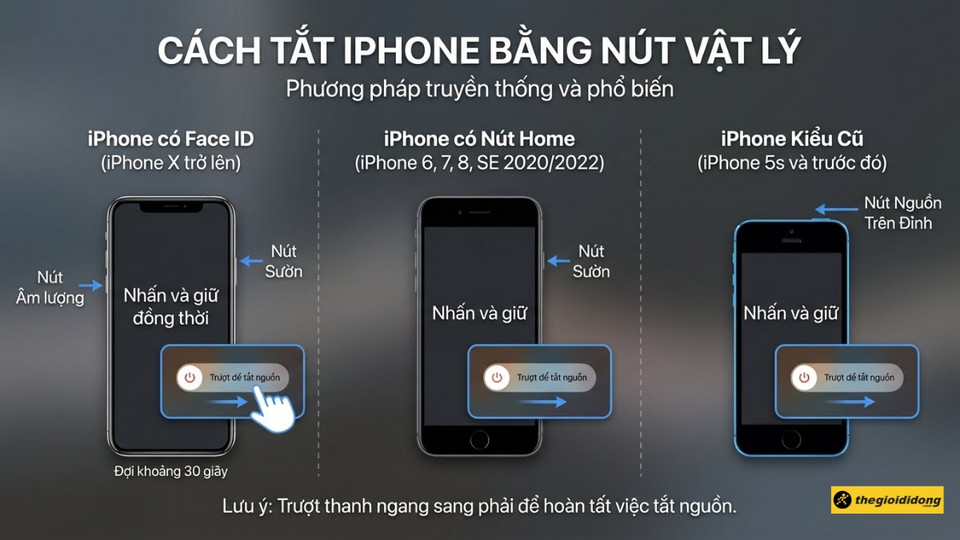
For iPhones with Face ID
Applies to models from iPhone X to iPhone 17 Pro Max:
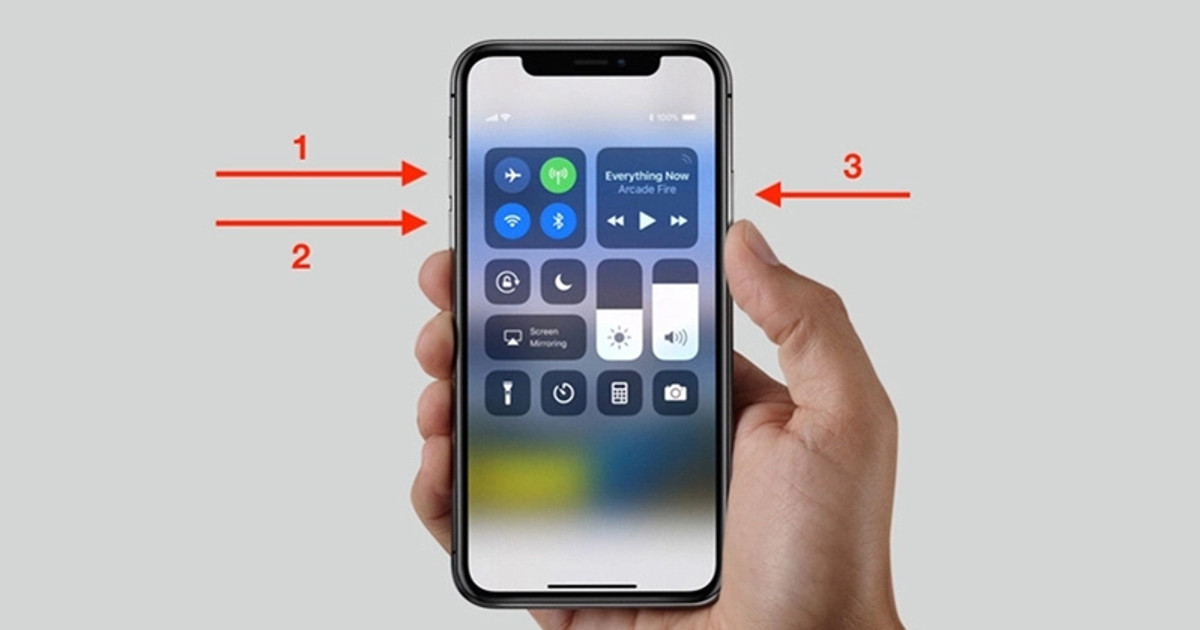
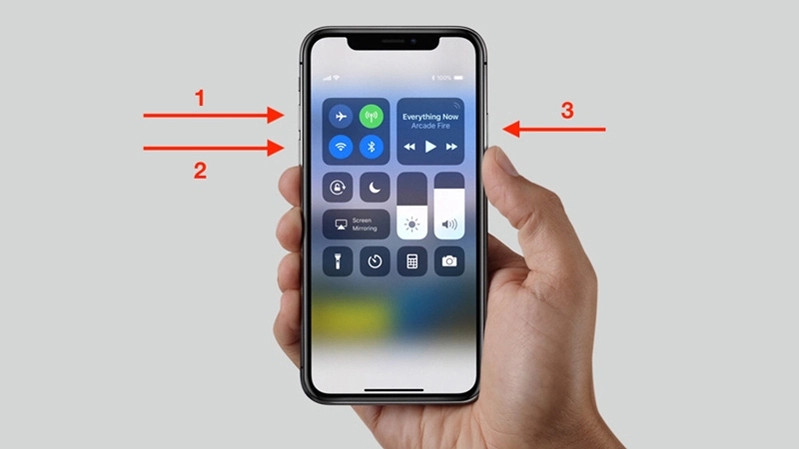
- Step 1:Press and hold the Side Button and either the Volume Up or Volume Down Button simultaneously.
- Step 2:When the “Slide to power off” slider appears, drag the slider to the right.
- Step 3:Wait about 30 seconds for the device to turn off completely.
For iPhone models with a Home button
Applies to iPhone 6, 7, 8 and the latest generation SE models:
- Step 1:Press and hold only the side button on the right edge.
- Step 2:Drag the power off slider on the screen to the right.
- Step 3:For older models like the iPhone 5s and earlier, the power button is located on the top edge of the device.
3. Turn off the power via software (Do not use the physical buttons)
This method is useful when physical buttons are malfunctioning or when users want to minimize mechanical stress on the keys.
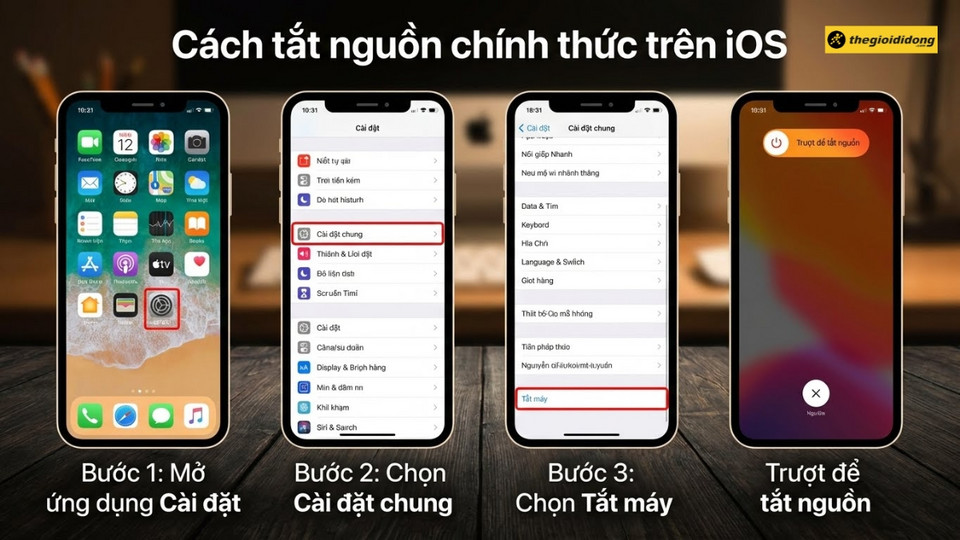
Use the Settings menu.
This is an official feature that Apple has integrated into the iOS operating system:
- Open the applicationSettings.
- SelectGeneral settings.
- Scroll to the bottom and selectShut DownThen drag the slider to confirm.
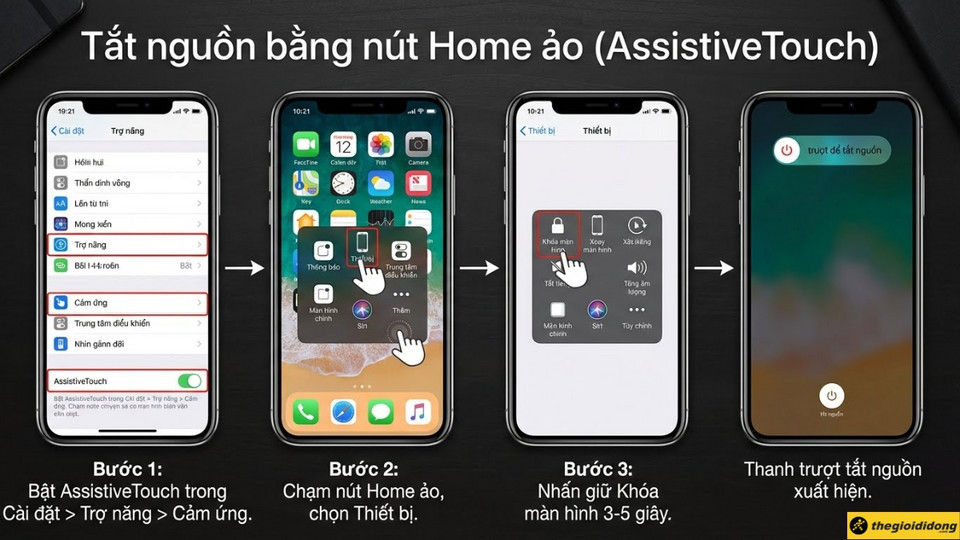
Use the virtual Home button (AssistiveTouch).
- Activate AssistiveTouch inSettings > Accessibility > Touch.
- Tap the virtual Home button icon, then selectDevice.
- Press and hold the iconLock Screenuntil the power off slider appears.
4. How to force a restart when your computer freezes or crashes.
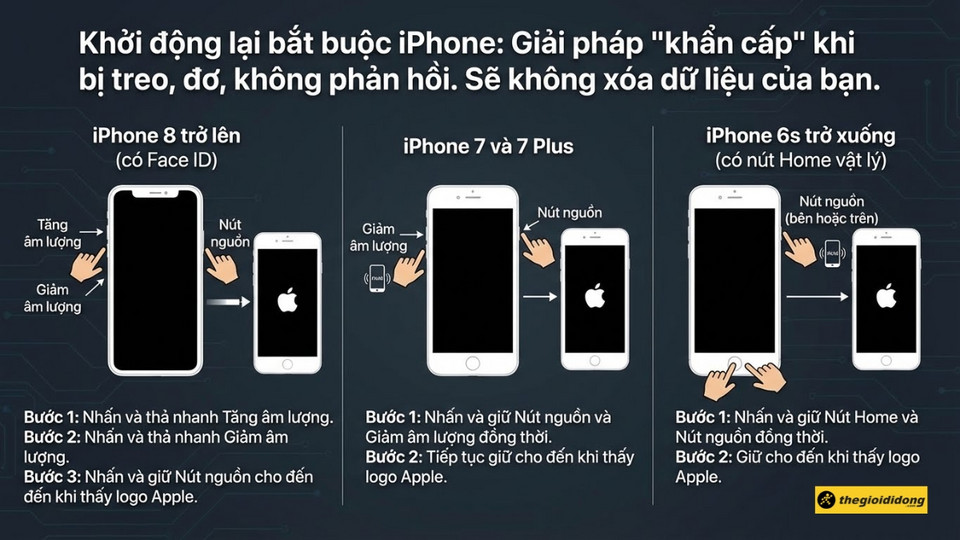
When your iPhone becomes unresponsive to touch, the “Force Restart” method is a forced restart that will restart the system without losing data.
- Face ID and iPhone 8/SE models:Press and release the Volume Up button quickly, then press and release the Volume Down button quickly. Finally, hold down the Side Button until the Apple logo appears.
- iPhone 7/7 Plus series:Press and hold the side button and the volume down button simultaneously until you see the Apple logo.
- iPhone 6s and older models:Hold down the Home button and the Power button simultaneously.
5. Important notes and frequently asked questions
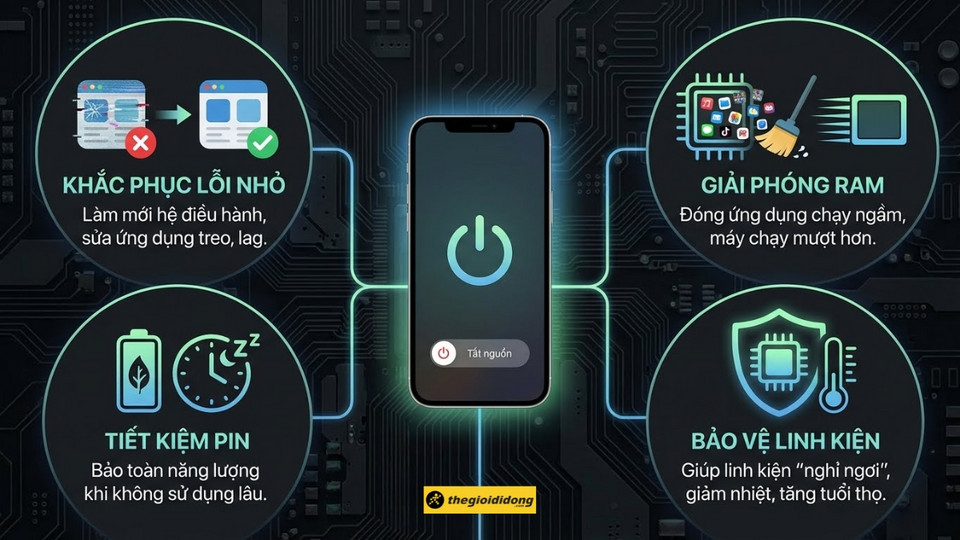
Turning off your device periodically offers several benefits, such as freeing up RAM, fixing application errors, and saving battery power when not in use for extended periods.
- Data loss:Turning the power off and on again will not cause the loss of photos, contacts, or personal data.
- Frequency:It shouldn’t be done daily because the warm-up process consumes more energy than usual.
- Turning on the machine when the power button is broken:Simply connect your iPhone to the charging cable, and it will automatically restart once it receives power.
- Security:After a restart, iOS always prompts you to enter your passcode instead of using Face ID/Touch ID to ensure data security.
https://baonghean.vn/en/cach-tat-nguon-iphone-cho-moi-dong-may-huong-dan-chi-tiet-tu-doi-cu-den-iphone-16-17-10323894.html